
Some stops can’t just be “whenever you’re passing”. A cafe takes deliveries before it opens, a receptionist goes home at five, a customer booked the 10-12 slot. A time window is how you tell the planner about it: the earliest and latest you can arrive at that stop, and how long you’ll be there. The planner then builds the route around the clock, not just the map - and if the day genuinely doesn’t fit, it says so instead of handing you a plan that falls apart by mid-morning. Time windows are part of Premium.
The screenshots below follow one made-up London round - a van out of London Bridge delivering to a few famous doorsteps.
Adding windows
There are three ways to get windows onto your stops. They all end up in exactly the same place, so use whichever fits how your work arrives.
Paste a CSV
If your jobs live in a spreadsheet, add three columns: earliest, latest, and service (minutes at the stop). Then copy the lot - headers included - and paste it into the stops box:
Postcode,Name,Address,Earliest,Latest,Service
EC4M 8AD,Grace Okafor,"St Paul's Cathedral, St Paul's Churchyard",08:00,10:00,10
EC3N 4AB,Harry Beauchamp,"Tower of London, Tower Hill",08:00,11:00,15
SE1 9DT,Molly Chen,"Shakespeare's Globe, 21 New Globe Walk, Bankside",08:00,12:00,10
SE1 1TL,Ray Donnelly,"Borough Market, 8 Southwark Street",,,5
WC1B 3DG,Priya Nair,"British Museum, Great Russell Street",09:00,13:00,20
SW1A 1AA,Edward Marsh,"Buckingham Palace, Westminster",10:00,14:00,10
SW7 2AP,Tom Gallagher,"Royal Albert Hall, Kensington Gore",11:00,15:00,15
SW7 5BD,Lucy Fenwick,"Natural History Museum, Cromwell Road",11:00,16:00,20
TW9 3AE,James Osei,"Royal Botanic Gardens, Kew, Richmond",11:30,17:00,15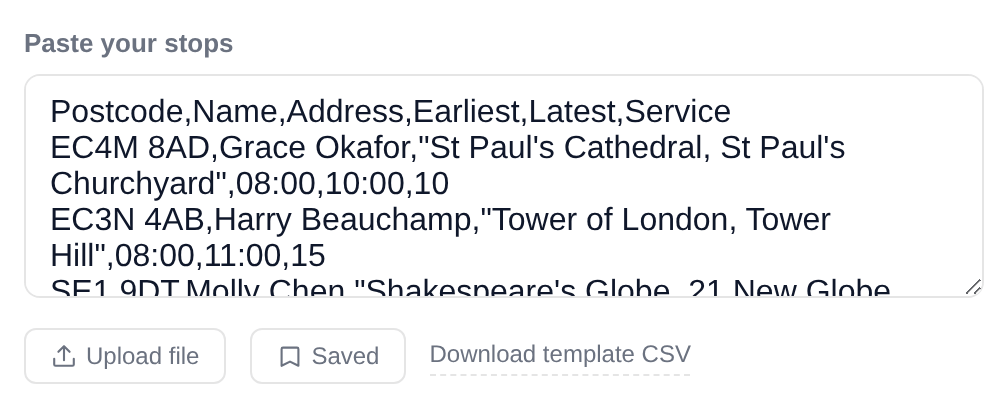
To be clear about what’s required and what isn’t:
- Postcode is the only required column - the route is built from it.
- Name, Address, Notes - optional labels, so your list reads like your round.
- Earliest, Latest, Service - optional too, per stop. Leave any of them blank and that stop is “anytime”: the Borough Market row above has no window at all, and that’s fine. A stop can also have just an earliest (“from 09:00”) or just a latest (“by 14:00”).
Upload a file
Same idea, no copy-paste: tap Upload file and pick your CSV or Excel file (.csv, .tsv, .xlsx, .xls).

Check the column mapping
Whether you pasted or uploaded, the planner shows you a preview before anything is imported. Point each column at the right meaning - which column is the postcode, which is the earliest time, and so on:
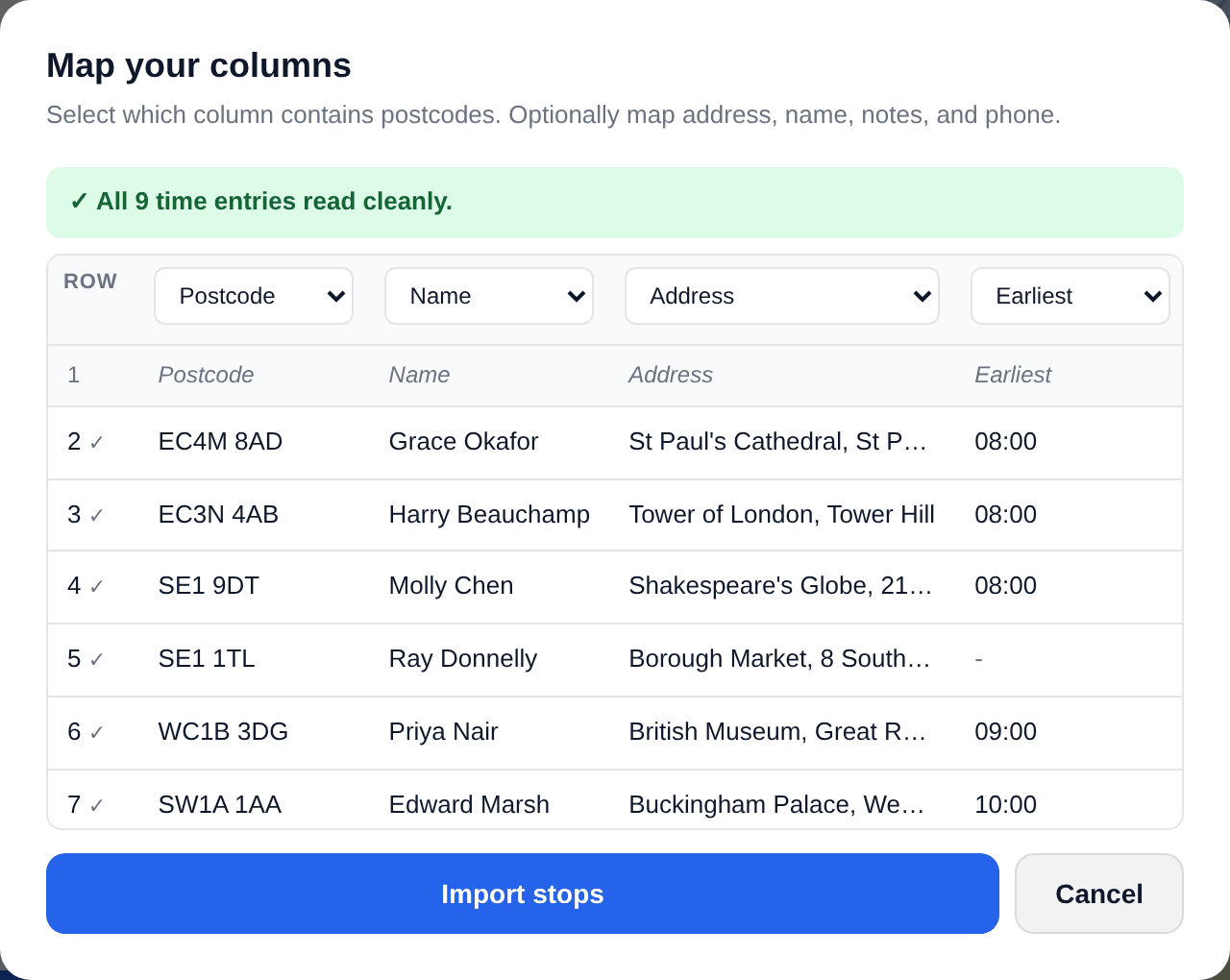
The green line at the top tells you your times were read cleanly. Scroll across and you’ll see the window columns - note the dashes on the Borough Market row, a stop with no window:
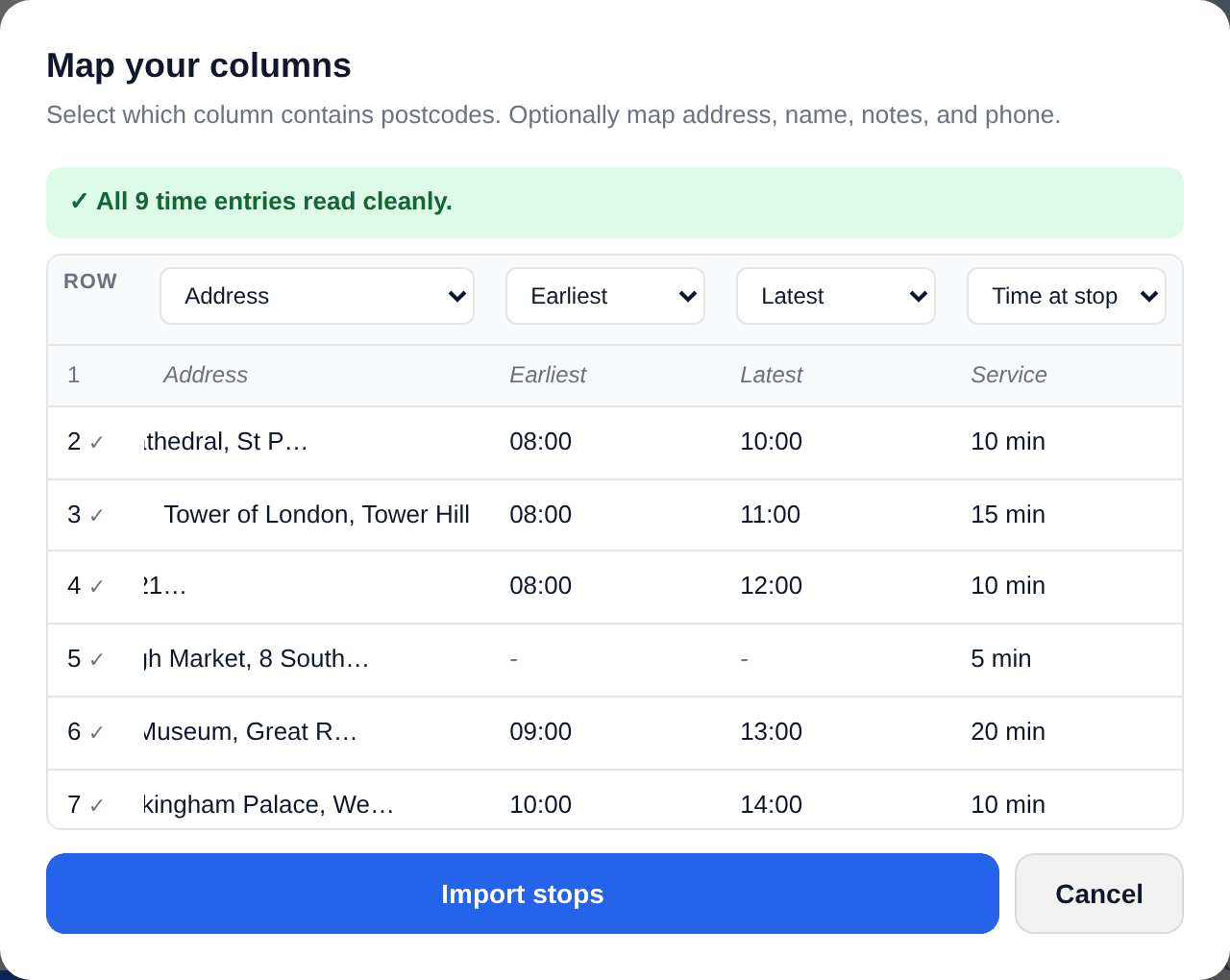
Tap Import stops and you’re in. The planner remembers your layout, so next week’s file from the same system maps itself.
Add or edit a single stop
For one-off changes you don’t need a spreadsheet at all. Tap the pencil on any stop card (or + Add stop at the bottom of the list) and the full form opens, windows included:
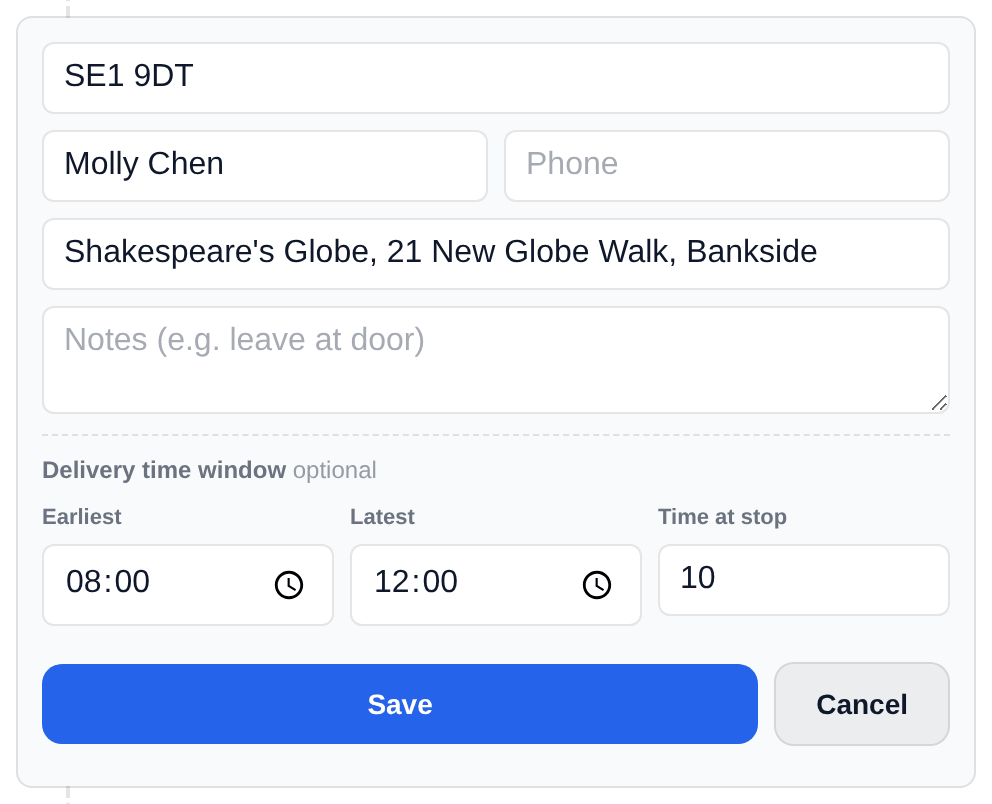
The same rules apply here: every window field is optional, and a stop with blank windows is treated as anytime.
Reading a good result
When every stop can be reached inside its window, the result says so plainly:

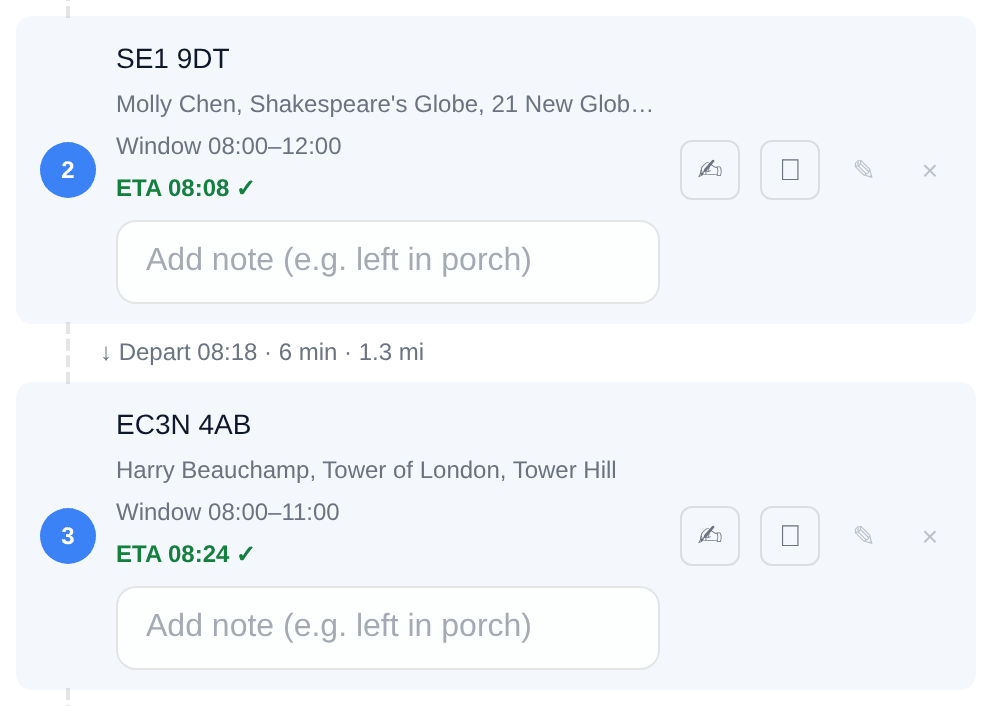
Each stop card shows its window and an honest ETA line. A tick means you arrive inside the window:
If you’ll arrive before a window opens, the card says how early - this is a real wait, not a problem:
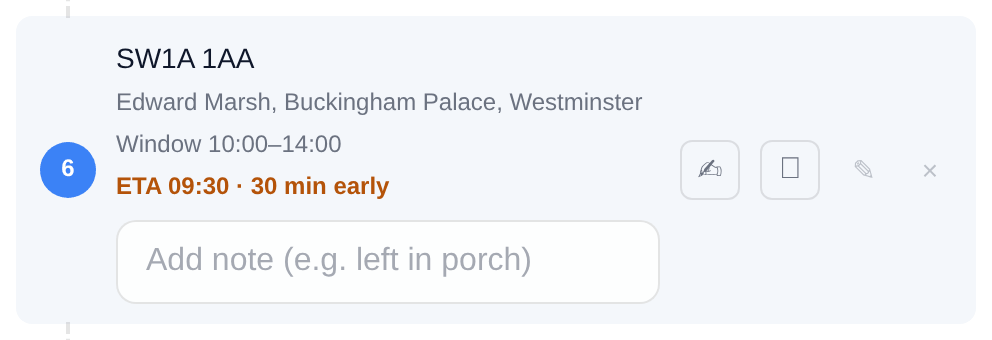
Thirty minutes early at a stop that opens at ten means half an hour parked up - time for a call, paperwork, or a coffee. The planner only routes you there early when it’s still the best order for the day; the departure times on the connectors between cards already include the wait.
When the day doesn’t fit
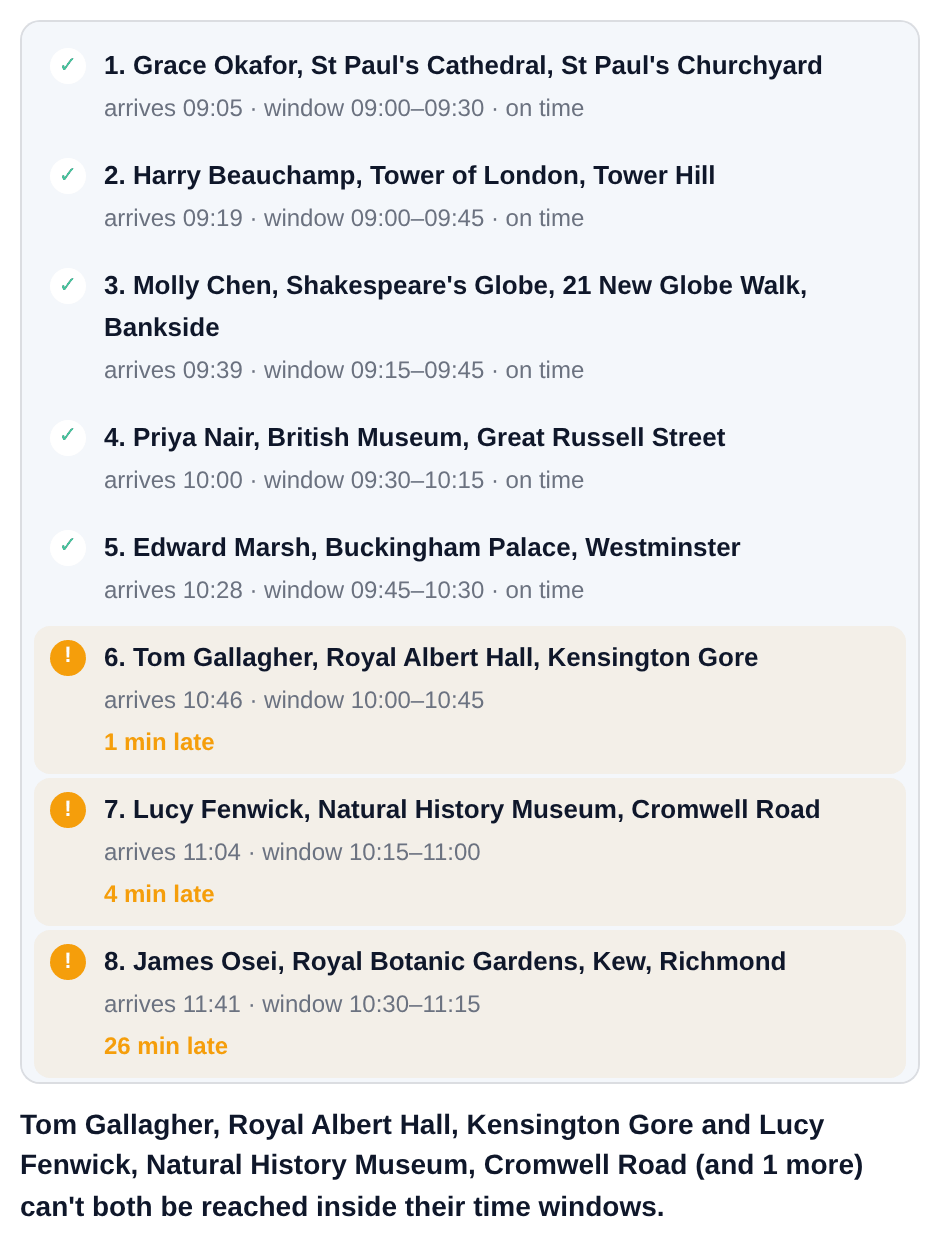
Sometimes the maths just doesn’t work - too many stops want the van in the same hour. The planner won’t pretend otherwise. Here’s a tightened version of the same round - eight of the stops, everyone wanting the van before lunch - squeezed into one impossible morning:
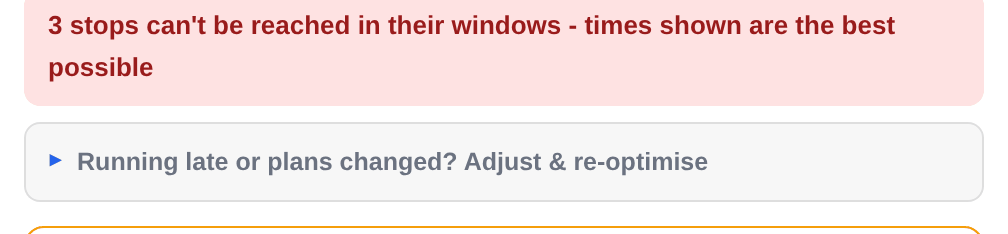
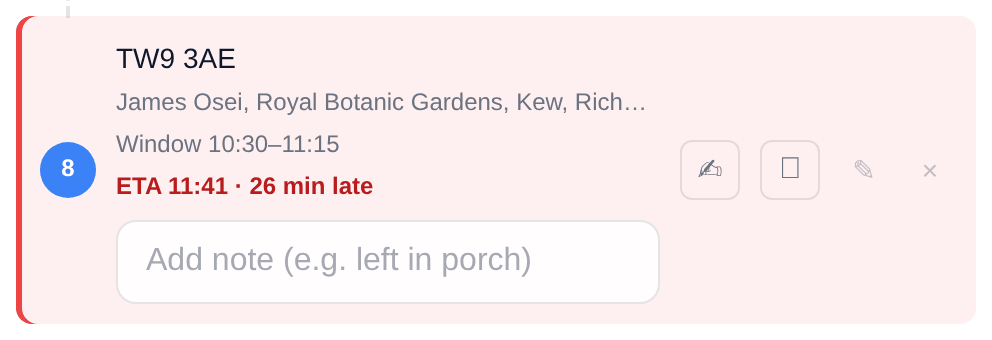
“Times shown are the best possible” means exactly that: the planner has already tried every order and this is the least-late version of your day. The ETAs on the cards are real - they’re what will actually happen if you run this route - and late stops are marked in plain figures:
Below the verdict, the planner lays the day out as a timeline and names the actual cause - which stops are fighting each other:
The levers
Under the timeline is a short list of concrete fixes - levers you can tap. Each one has been checked against your actual route, and the label tells you what it costs before you commit. Anything that turned out not to help is folded away under “other options checked”, so what’s left is only what works:
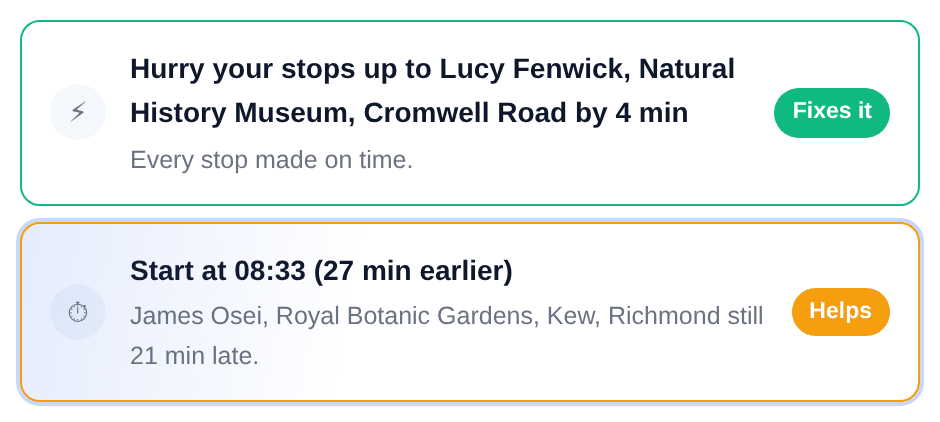
There are a few kinds:
Start earlier. Push the whole day back a bit. The row tells you the new leaving time and what it fixes - and, just as honestly, what it doesn’t:
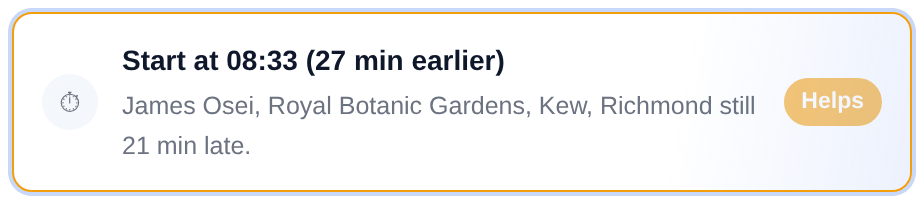
The trade-off is yours to judge: you’re leaving 27 minutes earlier for a day that’s still not perfect - but three late stops become one.
Hurry your stops. Shave minutes off the time you spend at each stop. Trimming 4 minutes at each of 8 stops buys back over half an hour across the day:
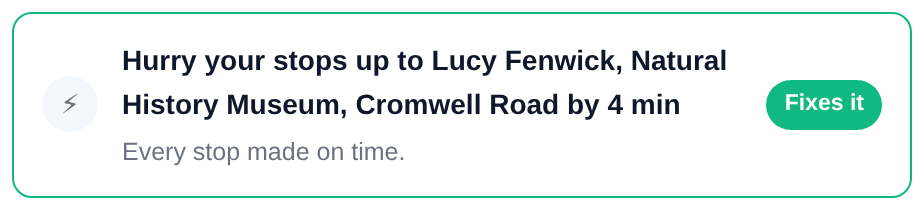
Only tap this one if the trimmed service time is actually realistic for how you work - the plan is only as honest as the numbers you give it.
Widen a window. When one stop’s slot is the problem, a phone call might solve it. The row tells you which window to widen and what that buys:
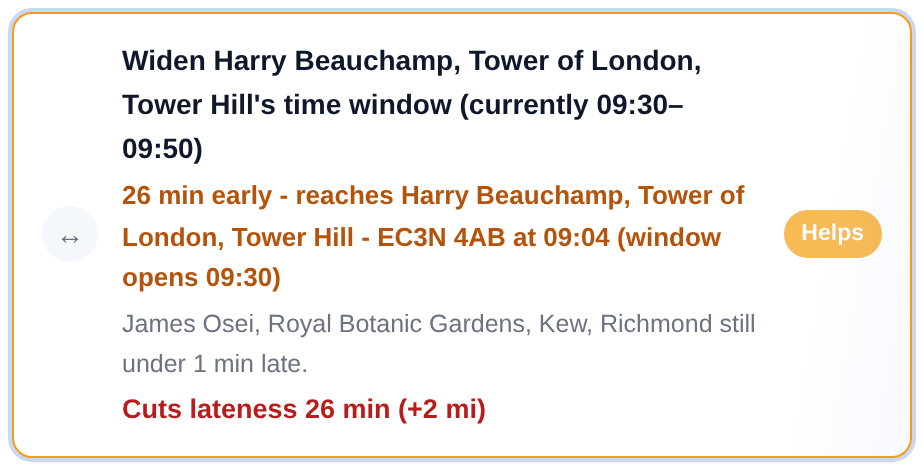
That row is your negotiating brief: “if Harry can take me at 9 instead of half past, the rest of the day works.”
Applying a lever
Tap a lever and the planner re-solves the day with that one change, then shows you the result - the trail at the top records what you’ve tried:
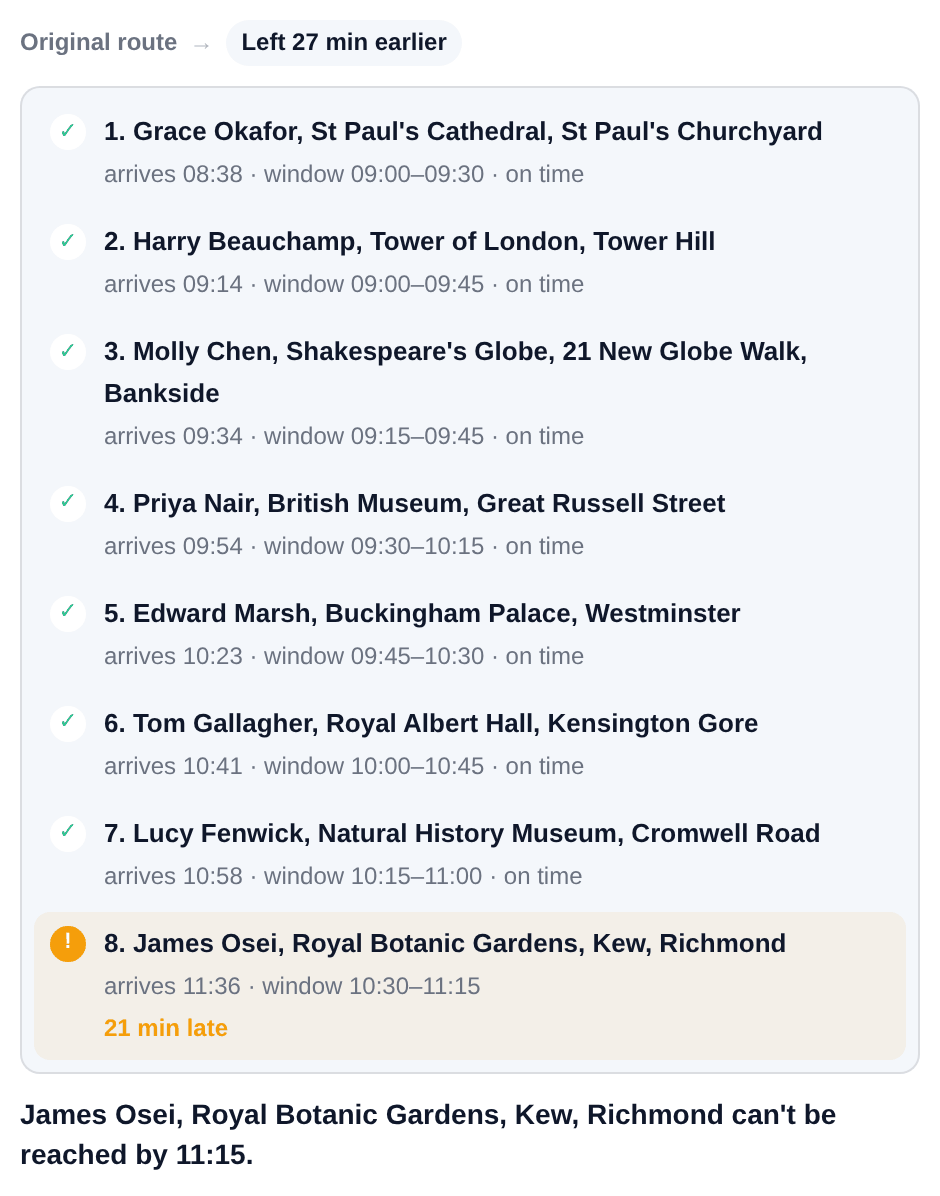
The verdict above the route updates to match - the day that was 3 late is now 1 late:
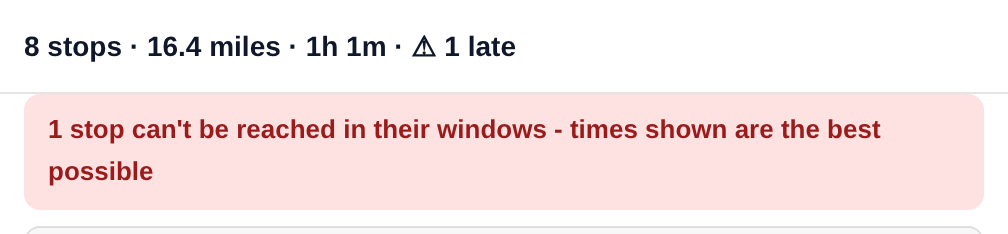
You can keep going - tap another lever, step Back, or Start over to return to the original day.
Run it as-is
Sometimes the honest answer is “it’s 26 minutes late at the last stop and that’s fine”. Run it as-is accepts the route with its lateness known and shown - the late labels stay on the cards so there are no surprises at the doorstep:

What windows don’t do
Two things worth knowing so the plan and the road agree:
- No live traffic. Drive times use typical free-flowing speeds for each road, not this morning’s crash on the A4. On a normal day they’re close; on a bad day the buffer is your problem, so don’t plan a window to the minute.
- Ferries don’t include the queue. A route that uses a ferry includes the crossing itself but not waiting or check-in time. If your round crosses water, pad the windows after the crossing. More detail on the data sources page.
Blank windows mean the planner is free to visit whenever suits the route - so only add windows where the clock genuinely matters. The fewer constraints you give it, the better the route it can find.